Sora 2 and Veo 3 in Content Production: A Step-by-Step Guide for Marketing Agencies
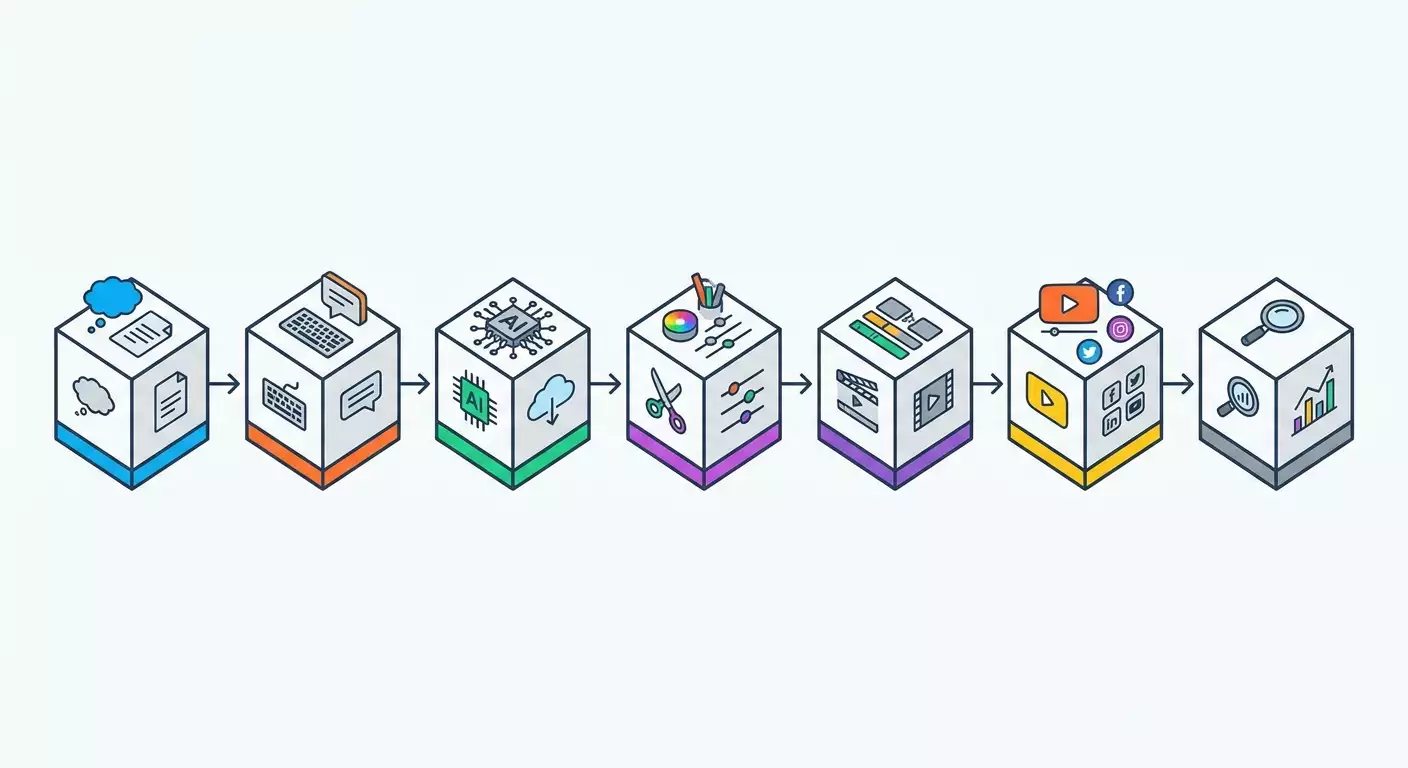
Sommaire de l'article
- Introduction
- Preparation
- Basic concepts
- Step 1: formalizing the brief for ai video
- Step 2: setting up the environment, access, and proxies
- Step 3: evaluating capabilities, pricing, and limitations of sora 2 and veo 3
- Step 4: generating the first prototype of the video
- Step 5: improving control with references and parameters
- Step 6: post-production — sound, color, upscaling, subtitles
- Step 7: editing and packaging for platforms
- Step 8: publication and preview for target regions
- Step 9: analytics, iterations, and scaling
- Result verification
- Common mistakes and solutions
- Additional opportunities
- Faq
- Conclusion
Introduction
This guide provides a practical, step-by-step pipeline for using Sora 2 and Veo 3 in marketing production. You'll learn how to convert a brief into a finished video asset, from task setting and prompts to final rendering, publishing, and analytics. We'll cover the capabilities of the models as of 2026, limitations, pricing benchmarks, and the best prompting practices. You'll receive step-by-step instructions, checklists, prompt templates, and common solutions to problems. By the end, you'll have a sustainable process that can scale to dozens of creatives per week.
This guide is designed for marketing agencies, brand creative teams, performance creatives producers, content managers, and project managers. If you're just starting out, we'll explain the basics in simple terms. If you're an experienced professional, you'll find advanced automation techniques, quality control, and regional API testing methods.
Before you start, it's helpful to know some basic terms: what is a prompt, reference conditioning, negative prompt, seed, aspect ratio, content safety filters, codecs, and bitrate. We'll provide brief explanations in the "Basic Concepts" section, so prior preparation is not necessary.
Creating a minimum viable pipeline (MVP) will take 1–2 working days: 3–4 hours for setting up your environment and access, 3–6 hours for prompt design and test generation, 2–4 hours for post-production and editing, and 1–2 hours for publication and result review. For scaling and automation, plan for an additional 1–3 days.
Preparation
To ensure stable and manageable operations, prepare your tools, access, and working environment. This will mitigate most typical risks and speed up the initial iterations.
Required Tools, Programs, and Access
- Access to Sora 2: an account on the supplier's platform, enabled access to video generation, an API key, or access through the web interface. As of 2026, access is often granted by request or as part of corporate plans. Check your status in your account.
- Access to Veo 3: through the supplier's cloud platform, often included in corporate plans and SDKs. The most common scenario is access via a cloud account with projects, billing, and quotas.
- Editing Software: DaVinci Resolve, Adobe Premiere Pro, or CapCut. DaVinci Resolve (the basic version is free) is suitable for color correction and sound.
- Post-Production Tools: Topaz Video AI or similar for upscaling and denoising, ffmpeg for batch conversions, Subtitle Edit or built-in tools for subtitles.
- File Management System: a structured project folder on a cloud disk with versioning or locally with regular backups.
- Network Testing and Proxy Tools: Postman or curl for API calls, as well as a mobile proxy service with options for country and operator selection and IP rotation.
System Requirements
- A computer with 16–32 GB RAM for comfortable editing and basic color correction, SSD 512 GB or larger.
- A stable internet connection of at least 50 Mbps, preferably 100 Mbps or more. This speeds up uploads and downloads when working with large files.
- Free disk space: at least 100–200 GB for cache and renders.
What to Download, Install, and Set Up
- Install your chosen video editor and ensure support for H.264 and H.265 codecs.
- Download ffmpeg and add it to your PATH for command line convenience.
- Set up your post-production tools: install Topaz Video AI or an alternative for upscaling.
- Install Postman to test API requests to Sora 2 and Veo 3.
- Prepare accounts on Sora 2 and Veo 3 platforms, obtain API keys or enable access to the generation web interface.
Backup Creation
Set up daily backups for key project folders, prompts, and settings. Store copies in a separate cloud repository. For non-renewable assets (logos, brand fonts, original audio tracks), keep duplicates in a separate archive dated.
Tip: Keep prompts and generation parameters in text files next to the final videos. This will speed up result recovery if iterations are needed.
Basic Concepts
To work comfortably with video generators, let's establish a few terms.
- Prompt: a text description of the scene. In marketing, a prompt outlines the purpose, brand attributes, target audience, shooting style, length, and key emotion.
- Reference Conditioning: using reference images, frames, or clips to establish style, characters, locations, and color palette.
- Negative Prompt: a list of things you want to avoid: "no logos of other brands, no watermarks, not a cartoon, no dark palette".
- Seed: a number that sets determinism. The same seed, all else being equal, yields reproducible results.
- Aspect Ratio: the ratio of width to height: 9:16 vertical, 1:1 square, 16:9 horizontal.
- Safety Filters: checking generated content for compliance with policies and laws. As of 2026, platforms require labeling "synthetic content" for certain publications.
The principle of operation is the same: you formulate an intention (prompt), set limitations (aspect ratio, duration, style, references), and send a request. The model generates a video clip, you watch, refine the prompt and parameters, repeat iterations, then move to post-production.
Tip: The more accurately you describe the business goal and KPI in the prompt, the faster you'll receive a working creative. Don’t focus solely on visuals — include the desired emotion and key message.
Step 1: Formalizing the Brief for AI Video
Goal of the Stage
To produce a structured technical brief that can be directly transformed into a prompt and parameters for Sora 2 and Veo 3.
Step-by-Step Instructions
- Describe the goal: increasing recognition, driving traffic to a landing page, boosting purchase conversion, gathering applications.
- Specify KPIs: CTR, VTR, click conversion, 3-second retention, cost per lead.
- Define the target audience: age, interests, insights, pain points, common objections.
- Formulate the key message and CTA: "Try for 7 days", "15% off until Sunday", "Subscribe now".
- Describe the brand voice and restrictions: palette, rhythm, acceptable imagery, legal restrictions.
- Set formats: 9:16 for vertical video, 16:9 for YouTube, 1:1 for feeds.
- Define duration: 6, 15, or 30 seconds. For stories, 6–15 seconds is common.
- Gather references: 3–5 examples of style, frames, color grading, lighting solutions.
- Sketch the script: a hook in the first 1–2 seconds, benefits, proof, CTA.
- Record any legal requirements: approvals, rights to fonts, music, images.
Important Points
The hook is mandatory. The first 2 seconds determine retention. Write it separately in the brief. Be specific with the CTA. "Buy now" is better than an abstract call.
Caution: Do not use other brands' names or trademarks in prompts without permission. This may infringe rights and lead to creative blocks.
Expected Outcome
You will have a 1–2 page document with clear fields: goal, KPIs, audience, message, CTA, formats, duration, references, legal restrictions.
Possible Problems and Solutions
- Too vague a brief — add numbers, examples, and references.
- Complex language — rewrite in simple phrases, focusing on the viewer.
✅ Check: You can explain the task to a bystander in 30 seconds, and they understand the video's idea and call to action.
Step 2: Setting Up the Environment, Access, and Proxies
Goal of the Stage
To guarantee stable connections to Sora 2 and Veo 3, correct quotas, and the ability to test APIs and previews from different regions.
Step-by-Step Instructions
- Log into Sora 2 and Veo 3 accounts. Check access status, quotas, and limits on generation.
- Generate API keys. Save them in a password manager. Set up environment variables for Postman or CI/CD.
- Prepare a working folder structure: 00_brief, 01_prompts, 02_generations, 03_post, 04_final, 05_delivery.
- Install Postman. Create a collection called "AI Video Pipeline". Add environments for "Sora2_Prod", "Veo3_Prod" with variables base_url, api_key, region.
- Connect mobile proxies for regional API tests. Specify the country, operator, HTTP(S) or SOCKS5 protocol, and, if necessary, set rotation by timer.
- Check your IP and DNS. Use free tools: IP checker, DNS Leak Test, and Proxy Checker at MobileProxy.Space to ensure traffic exits from the correct region.
- Add IP addresses to the whitelists of Sora 2 and Veo 3 accounts if required by the supplier's security policy.
- Create a test request in Postman: a simple prompt for 3–4 seconds, aspect 1:1, low resolution. Send and wait for a response.
Important Points
Work with IP whitelists. Many platforms as of 2026 require fixed IPs for APIs. Regularly check DNS. Incorrect DNS can lead to unexpected exit regions.
Caution: Operate within the supplier's policies and legislation. Regional tests are needed for quality and consistency in display, not for rule violations.
Expected Outcome
You send test requests to both models, receive responses, and are able to see previews from the designated region.
Possible Problems and Solutions
- 401 Unauthorized — check API key and headers.
- 429 Too Many Requests — reduce request frequency or increase quotas in your account.
- Incorrect region — double-check proxy and DNS settings, retest using Proxy Checker.
✅ Check: In Postman, you see a successful 200 OK response, and in the log, the correct region according to IP check.
Step 3: Evaluating Capabilities, Pricing, and Limitations of Sora 2 and Veo 3
Goal of the Stage
To understand which tasks to solve in each model, how to plan your budget, and what to expect in terms of quality and duration.
Brief Overview of Capabilities as of 2026
- Sora 2: video generation from text, transforming images into video, stylization with references, camera and composition control, setting duration and proportions, basic editing tools. In some plans — improved lighting, physics, character consistency.
- Veo 3: photorealistic and stylized scenes, complex camera movements, control of duration and pace, reference support, improved stability of objects in frame, access through cloud dashboard and API.
Pricing and Quota Benchmarks
Commercial terms and quotas change. As of 2026, a common approach is pricing based on the duration of generated video, resolution, and the use of additional features. Corporate plans may include dedicated quotas, priority queues, and higher limits on duration. For precise figures, use the billing in your supplier account. Plan your budget with an additional 20–30% margin for iterations.
Limitations and Usage Policies
- Content policies: bans on sensitive topics, copyright compliance, mandatory labels like "synthetic" on certain platforms.
- Duration and resolution: available thresholds depend on the plan and queue. Renders of 6–30 seconds are often optimal.
- Reproducibility: seed enhances repeatability, but different model versions may yield variations.
Tip: For budgeting, create a table: columns for "Model", "Duration", "Resolution", "Iterations", "Estimated Cost per Unit", "Total for Creative". Regularly cross-check with billing.
Expected Outcome
You will understand which tasks are best solved by Sora 2, which by Veo 3, and how to assess your campaign budget.
Possible Problems and Solutions
- Unpredictable queues — plan for nighttime renders and prioritize tasks in advance.
- Overbudget — limit the duration of test clips to 3–6 seconds, scale only successful options.
✅ Check: You can explain to the client how much 10 creatives of 15 seconds each will cost and how many iterations are available in planned quotas.
Step 4: Generating the First Prototype of the Video
Goal of the Stage
To obtain a quick prototype of the video based on the brief, to check the hook, style, and key message.
Step-by-Step Instructions
- Take the brief and highlight the hook, benefits, and CTA. Write them in simple phrases.
- Gather 2–3 reference frames: color palette, composition, type of lighting. Prepare images in 1080 on the long side.
- Compose a prompt for Sora 2: "Vertical 9:16, 15 seconds. Hook in the first 2 seconds: hands opening a box with product, soft diffused light, modern kitchen. Palette of warm light beige tones. Fast pace, uplifting mood. Show close-ups, then a wide shot. At the end, a close-up of the product. Emotion: joy from ease of use. No other brands, no text, no watermarks. Fixed seed".
- Add a negative prompt: "no cartoonish elements, no excessive depth of field, no dark scenes, not vintage".
- Specify aspect 9:16, duration 15s, references. Start generation in Sora 2.
- Simultaneously, create a prompt for Veo 3 with a similar structure, but try a different lighting style: "cool studio lighting and reflections".
- Evaluate the previews. Check the first 2 seconds for retention, product readability, and camera movement clarity.
Important Points
Start with short tests. Generate 6–8 second versions, then scale successful ideas up to 15–30 seconds. One meaning — one variation. Don’t mix different features in one test.
Caution: If you use styles or characters resembling well-known people, ensure compliance with laws and platform policies. In some cases, explicit permission is required.
Expected Outcome
You will have 2–4 prototypes: one or two from each model, with different lighting and compositional solutions.
Possible Problems and Solutions
- Blurred product — add "close-up of product at the end" and "clear focus" in the prompt.
- Too dark — clarify "soft fill light, exposure +0.5 EV".
- Unreadable hook — simplify the action to a single gesture, e.g., "hand pressing a button and instant result".
✅ Check: In each prototype, the hook is noticeable in the first 2 seconds, and the product is shown up close by the end of the clip.
Step 5: Improving Control with References and Parameters
Goal of the Stage
To achieve predictability: stable style, object consistency, reproducible results.
Step-by-Step Instructions
- Add 2–3 style frames as reference conditioning to solidify color and light.
- Specify camera work: "smooth dolly-in at the beginning, then static medium shot, at the end quick dolly-out to the packshot".
- Set the shot change speed: "cut every 2.5 seconds" or "no abrupt cuts, one continuous shot".
- Fix the seed. Save it alongside the prompt.
- Use a negative prompt to eliminate artifacts: "no logos, no hand distortions, no texture noise on surfaces".
- Create 2–3 versions of the same scene with only one parameter changing: lighting or camera movement. Compare results.
Important Points
Change only one parameter per iteration. This way, you will understand the contribution of each setting. Save versions. Name files meaningfully: 02_generations/sora2_huk_warmlight_seed42_v3.mp4.
Tip: Keep a prompt table: columns for "version", "change", "seed", "result", "quality notes" — this will save dozens of hours on team collaboration.
Expected Outcome
You will have a stable set of parameters that reliably delivers the desired style and product readability.
Possible Problems and Solutions
- Palette varies — add to the prompt "dominant shades: warm beige, light cream, accent — soft gold" and secure the style frames.
- Losing focus — specify "stable focus on the product in the final 3 seconds".
✅ Check: Regeneration with the same seed yields visually comparable results in style and light.
Step 6: Post-Production — Sound, Color, Upscaling, Subtitles
Goal of the Stage
To transform the rough generation into a clean master: equalize color, increase clarity, add sound and subtitles.
Step-by-Step Instructions
- Import the clip into your video editor. Set the project to the target resolution and FPS of the platform.
- Perform basic color correction: white balance, contrast, saturation. Save LUTs if needed for further applications.
- If necessary, use upscale in Topaz Video AI. Sharpen moderately to avoid artifacts.
- Clean up noise and flickers. Check the uniformity of lighting between shots.
- Add background music with a license and sound effects. Mix levels: prioritize voice over music set at -12 to -18 LUFS relative to voice.
- Generate or record voiceover. Ensure clear diction and tempo matches the video.
- Add subtitles. Check synchronization and readability on mobile screens.
- Apply final noise reduction on voice and light compression for consistent volume level.
Important Points
Don't overdo the sharpening. Excessive contour artifacts reduce trust. Keep sound dynamics within a narrow corridor. This makes the creative comfortable to listen to on mobile.
Tip: Create presets for color correction and sound tailored to common niches. This can reduce post time by 30–40% in production flows.
Expected Outcome
A finished master clip with clear sound, readable image, and correct resolution for the target platform.
Possible Problems and Solutions
- Out of focus during upscaling — reduce the increase factor or use a different model profile.
- Sibilance in the voice — apply a de-esser in the 5–8 kHz range and light compression 2:1.
✅ Check: The clip looks sharp on a smartphone, sounds even, and subtitles are readable without strain.
Step 7: Editing and Packaging for Platforms
Goal of the Stage
To prepare versions for different platforms, retain the hook and CTA, and ensure compliance with technical requirements.
Step-by-Step Instructions
- Create vertical 9:16, horizontal 16:9, and square 1:1 versions. Adjust framing to keep the product always in focus.
- Add a packshot with the brand logo and CTA at the end. Ensure it’s within safe zones.
- Set export settings: MP4 container, H.264 codec, High profile, VBR bitrate of 12–20 Mbps for 1080p. For short verticals, 8–12 Mbps is sufficient.
- Check the file metadata: name with version, date, format, and platform.
- Convert a duplicate through ffmpeg for a fast start for web streaming (moov atom at the beginning) if needed.
Important Points
Safe zones. Do not place logos and CTAs too close to the edges, considering app interfaces. Retain the hook. Do not cut the key action in the first 2 seconds.
Tip: Create export presets for each platform. This will exclude codec and bitrate errors.
Expected Outcome
You will have 3 versions of the same creative, correctly packaged for different formats, with stable image and sound quality.
Possible Problems and Solutions
- Heavy file — reduce the bitrate or use two-pass encoding.
- Blurry subtitle text — increase the font size, contrast of the background, and check on a phone.
✅ Check: Files pass platform validation and buffer quickly during the preview.
Step 8: Publication and Preview for Target Regions
Goal of the Stage
To test creatives on real platforms, verify display, compliance with standards, and accuracy of tags.
Step-by-Step Instructions
- Upload creatives to placement cabinets and content platforms, adhering to local 2026 rules on synthetic content labeling where needed.
- Create UTM tags for tracking clicks. Coordinate the scheme with your analyst.
- Make previews from the necessary regions. For accuracy, use mobile proxies with real SIM carriers to see content "as a user".
- Check the display of the CTA, subtitles, and play button on different devices.
- Schedule A/B tests: change the hook, packshot, or background music, leaving the rest unchanged.
Important Points
Test on mobile networks. Most views come from smartphones. Adhere to platform rules. As of 2026, many services require explicit indication of the use of generative AI in metadata or descriptions.
Tip: For regional previews and API tests, use MobileProxy.Space: 218+ million IPs, 53+ countries, real mobile traffic, HTTP(S) and SOCKS5 at the same time, flexible timer rotation and through API or link. There are 3 hours of free testing and 24/7 support. Promo code YOUTUBE20 gives a 20% discount on your first purchase.
Expected Outcome
Creatives display correctly in target regions; tags work; analytics capture data; preview meets requirements.
Possible Problems and Solutions
- Incorrect cropping in verticals — check safe zones and adjust key frames.
- Incorrect localization — ensure the correct visual and cultural context is used in prompts and posts.
✅ Check: Reports from analytics show initial data on views and clicks; preview matches expectations for the region.
Step 9: Analytics, Iterations, and Scaling
Goal of the Stage
To build a cycle of improvements based on metrics and expand creative production without sacrificing quality.
Step-by-Step Instructions
- Gather basic metrics: CTR, VTR, 3-second retention, depth of view, cost per action.
- Correlate metrics with prompt versions and rendering parameters. Identify which hooks and palettes perform best.
- Record A/B winners and create 3–5 variations with one change: light, composition, rhythm.
- Set up batch generation via API. Plan queues overnight to use quotas most effectively.
- Automate export and post-production with presets and ffmpeg scripts. Minimize manual labor.
Important Points
One change per test. This way, you will know exactly what contributed to the metric increase. Record all parameters. Prompts without history quickly lose manageability.
Tip: Use the delay map and proxy calculator on MobileProxy.Space to plan nighttime rendering queues and uploads to regions with minimal latency.
Expected Outcome
You have implemented an iterative cycle and are scaling successful patterns without wasting excess quotas on weak ideas.
Possible Problems and Solutions
- Unstable metrics — increase the sample size of views and the testing period, eliminate the impact of external factors.
- Queue overload — distribute renders between Sora 2 and Veo 3 and adjust time slots.
✅ Check: After 2–3 iterations, you see increased CTR and VTR for selected creatives, and the cost per action decreases.
Result Verification
Checklist
- A formalized brief and a prompt table exist.
- Access and IP security are set, API requests have been tested.
- Prototypes obtained in Sora 2 and Veo 3, strong options selected.
- Post-production completed: color, sound, upscaling, subtitles.
- 9:16, 1:1, 16:9 versions created with correct export presets.
- Creatives published, previews checked by region.
- Metrics are incoming, A/B tests initiated, the iteration cycle is working.
How to Test
- Run a control "from scratch": create a new short creative and go through all stages in one working day.
- Check repeatability: change only the seed and ensure variability is within expected limits.
Success Metrics
- Stable time for producing one creative: no more than 4–6 hours from brief to publication with assets available.
- Increased CTR and retention compared to previous campaigns.
- Decreased iteration cost through batch generation and post templates.
Common Mistakes and Solutions
- Problem: The hook is not noticeable. Reason: Too late to reveal meaning. Solution: Move the key action to the first 1–2 seconds, simplify composition.
- Problem: Budget burns on tests. Reason: Long runs. Solution: Test with 6–8 second clips, scale winners.
- Problem: Style jumps between versions. Reason: No fixed references and seed. Solution: Add style frames and fix the seed.
- Problem: The product is unreadable. Reason: Insufficient lighting and focus. Solution: Clarify light and focus in the prompt, ensure a close-up at the end.
- Problem: Publication displays incorrectly in the region. Reason: Incorrect preview network. Solution: Check IP and DNS through verification tools and use mobile proxies for the target region.
- Problem: Long queues. Reason: Peak hours. Solution: Plan nighttime renders and distribute tasks between Sora 2 and Veo 3.
- Problem: Reproducibility doesn't work. Reason: Model version update. Solution: Save parameter versions and allocate extra iterations for adaptation.
Tip: Create a library of "control prompts" for diagnostics. If a control prompt yields unexpected results, the issue lies not in your creative but in the environment or model.
Additional Opportunities
Advanced Settings and Optimization
- Batch generation via API with queues and priorities based on KPIs.
- Automatic reframing for formats: a script changes the aspect ratio, reframes, and adds the final packshot.
- Custom control LUTs and sound presets for brand uniformity.
- Metadata tags and structured file names for end-to-end analytics from rendering to publication.
- Using reference conditioning for stable characters in creative series.
What Else Can Be Done
- Create a "creative matrix": verticals for hooks, horizontals for palette, rhythm, camera. Automate combinations.
- Utilize browser fingerprinting and IP checking tools to simulate typical viewing of the target audience during previews.
- Apply MobileProxies.Space mobile proxies as a unified layer of network abstraction for regional API testing with Sora 2 and Veo 3. HTTP(S) and SOCKS5 are simultaneously available with timer rotation through API or link.
Tip: For load planning, use the delay map from your proxy provider and keep a list of "fast" regions for nighttime batches.
FAQ
- How quickly can I get the first result? Answer: In 2–3 hours. Take the brief, create 2 short prototypes in Sora 2 and Veo 3, choose the best one, adjust the light, and edit a vertical 9:16 of 6–10 seconds.
- Which model is better: Sora 2 or Veo 3? Answer: It depends on the task. Test both on short clips. Often, Sora 2 is convenient for soft domestic scenes, Veo 3 for dynamic or stylized ones.
- How to control the budget? Answer: Test with short clips, use a cost table, automate nighttime queues, and fix A/B winners instead of testing all options consecutively.
- Can I repeat a successful style? Answer: Yes, fix the seed, use style frames, and minimally change parameters between iterations.
- What if the product gets distorted? Answer: Add explicit instructions about shape, material, and key details to the prompt, assure a close-up at the end, and enhance the negative prompt.
- How to check publication for a specific country? Answer: Use mobile proxies with country and operator selection and check IP and DNS through built-in verification tools.
- What export presets to use? Answer: MP4 H.264 High, 8–20 Mbps depending on resolution and platform, fast start for web player if necessary.
- Do I need to indicate that the video is generated by AI? Answer: As of 2026, many platforms require a label for synthetic content. Clarify platform rules and comply.
- How to organize files? Answer: Structure: 00_brief, 01_prompts, 02_generations, 03_post, 04_final, 05_delivery with meaningful names and dates.
- How to test API from different regions? Answer: Set the required country and operator in mobile proxies, check IP, DNS and make requests through Postman with environments for each region.
Conclusion
You have built a full AI video pipeline for marketing using Sora 2 and Veo 3: from a clear brief to publication and analytics. You've learned to prototype quickly, control style and focus, refine clips through post-production, and scale successful ideas. You've set up the environment, access, regional previews, and established best prompting practices. Next — automation: API queues, export presets, the creative matrix, and centralized analytics. For regional checks and load testing of APIs, mobile proxies with rotation, IP and DNS checks, and free helper tools like Proxy Checker, proxy calculator, and delay maps will assist you. Don't forget about 3 hours of free testing and the promo code YOUTUBE20 for a 20% discount on your first purchase from the mobile proxy provider. Do less but smarter: short tests, clear conclusions, bold iterations — and your creatives will become both faster and more effective.