How to set up a proxy on iPhone and iPad
文章目录
- Can you use a proxy on iphone, and does it work?
- How to set up, add, and connect a proxy on iphone and ipad
- How to download or install a proxy on iphone via an app
- How to turn off and disable a proxy on iphone
- How to make a proxy server out of your phone
- Risks of using a proxy on iphone
- When you need a mobile proxy rather than a public one
- Frequently asked questions
On iPhone and iPad a proxy is set up right in the system — in your Wi-Fi network settings, with no separate app required. Below we cover, step by step: how to set up, add, and connect a proxy, what to enter in the Server and Port fields, how to turn it off, whether a proxy works on iPhone at all, and what the risks are.
Can you use a proxy on iPhone, and does it work?
Yes — a proxy works fully on iPhone and iPad. iOS supports proxies at the system level for Wi-Fi networks: traffic from Safari, apps, and most services goes through the server you specify. One important nuance: iOS has no built-in proxy setting for the cellular network — there you need a configuration profile or an app (see below). So the simplest, most reliable approach is to set the proxy for your Wi-Fi network.
How to set up, add, and connect a proxy on iPhone and iPad
To set up and connect a proxy on iPhone, add it to your active Wi-Fi network settings:
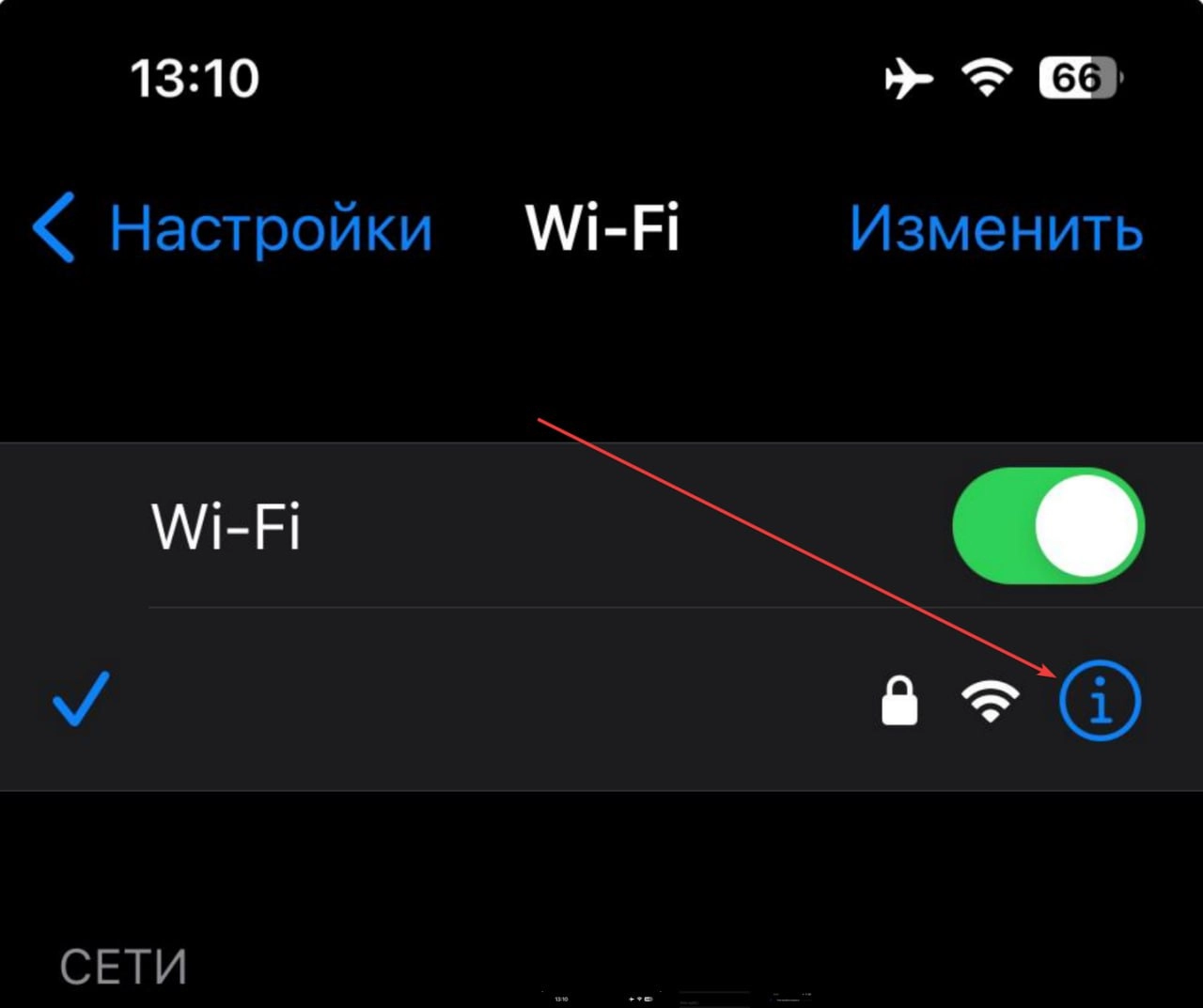
- Open Settings → Wi-Fi.
- Tap the (i) icon next to your network.
- Scroll down to "HTTP Proxy" and choose "Configure Proxy" → "Manual".
- Fill in the Server and Port fields (see below what to enter).
- If the proxy uses login auth, turn on "Authentication" and enter the username and password.
- Tap "Save". Done — the proxy is connected.
What to enter in the Server and Port fields for an iPhone proxy
In the Server field, enter the proxy's IP address or host (e.g., 185.xxx.xxx.xxx); in the Port field, the port number from your dashboard (e.g., 8080 for HTTP). HTTP and SOCKS5 usually use different ports — use the one that matches the protocol you need. Your proxy provider gives you these details at purchase.
How to download or install a proxy on iPhone via an app
If you need to "download" or "install" a proxy on iPhone — for example for SOCKS5, or to work over cellular rather than Wi-Fi — use an App Store app such as Shadowrocket, Potatso, or similar. They let you set the server, port, protocol, and authentication, and work where the system setting isn't enough. For a system HTTP proxy on Wi-Fi, no app is needed. For SOCKS5 specifically, see our dedicated guide on setting up SOCKS5 on iPhone and iPad.
How to turn off and disable a proxy on iPhone
To turn off a proxy on iPhone (including disabling a "stuck" network proxy):
- Open Settings → Wi-Fi → (i) next to the network.
- Under "HTTP Proxy", choose "Configure Proxy" → "Off".
- Save. If "Auto" (a PAC file) was used, switch that to "Off" as well.
An iOS proxy is tied to a specific Wi-Fi network, so you need to turn it off in every network where you enabled it. On an Android phone, a proxy is disabled similarly — in the Wi-Fi network settings, under "Proxy".
How to make a proxy server out of your phone
The query "how to make a proxy server on your phone" means something different — turning the phone itself into a proxy. On iPhone this isn't possible out of the box: iOS won't let you run a proxy server without special solutions. In practice, a mobile proxy is built on a separate device (a modem or an Android phone with dedicated software), and the ready-made mobile IP is rented from a service. If you specifically need a carrier mobile IP, that's mobile proxies from mobileproxy.space — not a DIY server on an iPhone.
Risks of using a proxy on iPhone
The main risk is trust: all your traffic goes through someone else's server, which makes free and public proxies dangerous (they can read data, alter pages, or leak traffic). What to keep in mind:
- Use only trusted paid proxies, and keep connections to target sites encrypted (HTTPS).
- Check for DNS leaks and verify your real IP after setup.
- Don't enter passwords on HTTP sites through an unknown proxy.
- The iOS system proxy only applies to Wi-Fi — on cellular, traffic goes direct unless you use an app.
When you need a mobile proxy rather than a public one
Public and datacenter proxies on iPhone get blacklisted fast and are blocked by services. If your goal is stable access, multi-accounting, or bypassing geo-restrictions, you need a mobile proxy with a real carrier IP. You can test any proxy for availability and anonymity in our proxy checker.
Frequently asked questions
Can you use a proxy on iPhone?
Yes. iOS supports system-level proxies for Wi-Fi networks — set them under "Settings → Wi-Fi → (i) → HTTP Proxy". For the cellular network you need a configuration profile or an app.
Does a proxy work on iPhone?
It does: after setup, traffic from Safari and apps goes through the server you specified. To confirm the proxy is active, open an IP-checking service — it should show the proxy's IP, not yours.
How do I disable the network proxy on iPhone?
Open "Settings → Wi-Fi → (i)" next to the network, set "HTTP Proxy" to "Off", and save. If "Auto" (PAC) was enabled, switch that to "Off" too.
Where do I turn off the proxy on iPhone?
The proxy setting isn't in a general menu — it's inside a specific Wi-Fi network's settings: "Settings → Wi-Fi → (i) → HTTP Proxy". Turn it off in every network where you enabled it.
What do I enter in the Server and Port fields?
In "Server", enter the proxy's IP address or host; in "Port", the port number from your provider's dashboard. HTTP and SOCKS5 usually use different ports — use the one for the protocol you need.
Do I need to download an app for a proxy on iPhone?
For a system HTTP proxy on Wi-Fi, no — it's all configured in the system. An app (Shadowrocket and similar) is needed for SOCKS5 or to work over the cellular network.
How do I make a proxy server out of an iPhone?
iOS doesn't let you run a proxy server on the phone itself out of the box. To get a mobile IP, you use separate hardware or rent a ready-made mobile proxy from a service.